
How to use 1Password to provide secrets to AI agents and desktop apps

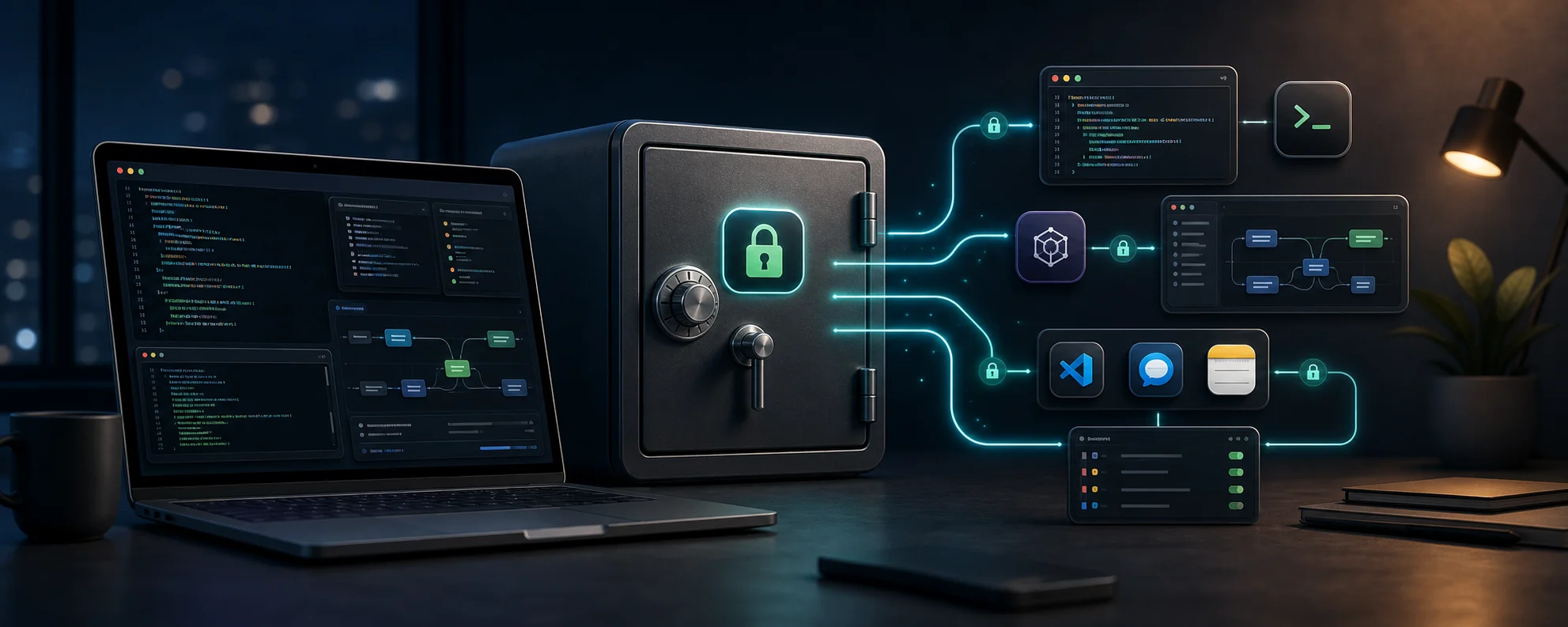
There is a curious stage you reach when you start working seriously with local agents.
At first, everything looks easy: you have an API key, put it in .zshrc, .bashrc, .env, common_rc or wherever, and move on.
The problem is that “move on” starts to grow.
One day a CLI needs the key. The next day it is a skill, an automation, or a desktop app that was not launched from your terminal. Before long, you have many secrets living in files that should not be the center of your security model.
I have been migrating that part to 1Password.
Not in the sense of “I store keys in 1Password and copy them manually when needed,” but as a real runtime for agents: credentials live in 1Password, processes receive them only when needed, and shell configuration files stop being the secret store.
The problem is not only where you store the API key
Keeping a key in a file such as .zshrc creates two different problems.
The first is obvious: the secret is plain text in a file that is loaded constantly.
The second is subtler: you end up treating the shell environment as your permission system.
If one tool needs OPENROUTER_API_KEY, you export it. If another needs TELEGRAM_BOT_TOKEN, you export that too. If a child process inherits all of it, that is simply accepted as collateral damage.
For a while, the simplicity may be worth it. But when your workflow depends increasingly on agents, automations and tools calling one another, it becomes a poor foundation.
Not because everything will explode tomorrow, but because you lose control.
The foundation: 1Password plus a wrapper
This is the approach I ended up using:
- A dedicated 1Password vault for the agent runtime.
- A service account with limited read access to that vault.
- An environment file containing 1Password references, not actual values.
- A wrapper that runs commands with those variables resolved.
The environment file contains no secrets:
OPENROUTER_API_KEY=op://Agent Runtime/OpenRouter API Key/password
GEMINI_API_KEY=op://Agent Runtime/Gemini API Key/password
LISTMONK_API_KEY=op://Agent Runtime/Listmonk API Key/password
Conceptually, it is like having a .common_rc for secrets without storing the secrets there.
The wrapper then does something like this:
#!/usr/bin/env bash
set -euo pipefail

token_file="${OPRUN_TOKEN_FILE:-$HOME/.config/1password/agent-runtime-token}"
env_file="${OPRUN_ENV_FILE:-$HOME/.config/op/agent-runtime.env}"

export OP_SERVICE_ACCOUNT_TOKEN
OP_SERVICE_ACCOUNT_TOKEN="$(<"$token_file")"

exec op run --env-file "$env_file" -- env -u OP_SERVICE_ACCOUNT_TOKEN "$@"
I called it oprun, because ergonomics matter:
oprun listmonk campaigns list
oprun postflow schedule list
oprun node script-that-needs-openrouter.js
The important part is not the name. The command receives the resolved variables, but the service account token does not reach the child process.
That detail is worth preserving. The process needs OPENROUTER_API_KEY; it does not need general access to the vault.
Skills learn how to request their secrets
Once this exists, you can update skills and runbooks so they stop assuming that variables are exported globally.
Before:
listmonk campaigns listAfter:
oprun listmonk campaigns listIt looks like a small change, but it shifts the security boundary significantly.
The shell still holds non-sensitive configuration: base URLs, usernames, flags and paths. API keys and tokens, however, pass through 1Password at execution time.
This fits agents particularly well because credential access becomes an operational convention. A skill that needs Listmonk knows it must use oprun. The same applies to PostFlow, OpenRouter or Gemini.
You no longer depend on a particular terminal session having loaded the right environment.
The unusual case: desktop apps
The difficulty appears with desktop applications.
A CLI launched from your terminal can use oprun easily. An app opened from Finder, Spotlight or the Dock does not inherit the environment of your interactive shell.
This happened to me with OpenCode.
The app needed credentials that were already stored correctly in 1Password and worked from the terminal. But when I opened it as a regular macOS application, it could not see those variables.
There are several options:
- keep those variables in the user’s global environment;
- use a tool-specific plugin;
- always open the app from the terminal;
- create an
.appwrapper.
The last option is the one I prefer.
A small .app that points to the real application
The wrapper is not a copy of the application.
It is a minimal macOS app that might live at /Applications/OpenCode Agent Runtime.app, but internally runs:
$HOME/.local/bin/oprun /Applications/OpenCode.app/Contents/MacOS/OpenCodeThe original app remains at /Applications/OpenCode.app.
When OpenCode updates, the real app is updated. The wrapper merely points to the executable inside its bundle. As long as that path and executable name remain unchanged, there is nothing else to do.
The wrapper has its own Info.plist, can copy the original app icon so it looks right in Finder and the Dock, and registers with LaunchServices so macOS treats it as a normal app.
Its executable can be as simple as this:
#!/usr/bin/env bash
set -euo pipefail

log_dir="${AGENT_RUNTIME_LOG_DIR:-$HOME/Library/Logs/AgentRuntime}"
mkdir -p "$log_dir"

exec "$HOME/.local/bin/oprun" \
  /Applications/OpenCode.app/Contents/MacOS/OpenCode \
  "$@" >>"$log_dir/opencode-agent-runtime.log" 2>&1
You can then keep the shortcut in the Dock and open it like any other app.
It is not perfect: if the app changes its internal structure, you will need to regenerate the wrapper. But it is clean, reversible and easy to understand.
What you should verify
I consider three checks mandatory:
- The real app opens from Finder or the Dock.
- The child process receives the variables it needs.
OP_SERVICE_ACCOUNT_TOKENdoes not appear in the child process environment.
The third is the most important one.
The service account exists to resolve secrets. It should not remain available inside every app you launch through the wrapper.
It is also worth ensuring that oprun does not depend on the interactive shell’s PATH. Apps opened from Finder usually have a much poorer environment than a terminal. If the wrapper calls op, oprun should locate it through an absolute path or explicit configuration.
That was the exact failure I encountered in the first test: it worked from the terminal, but Finder could not find op. The solution was to make oprun resolve the 1Password CLI binary without relying on the interactive PATH.
The pattern I care about
What I like about this solution is not only that it works with OpenCode.
I like the general pattern it creates:
- secrets in 1Password;
- non-sensitive configuration in the shell;
- agent commands through
oprun; - desktop apps through
.appwrappers; - no keys copied into startup files;
- no requirement to launch everything from the terminal.
Above all, it is easy to turn into a skill.
An agent can now create this type of launcher for any macOS app: inspect the original bundle, find the real executable, generate the .app wrapper, copy the icon if one exists, register the application and explain how to verify that secrets arrive without leaking the service account token.
I do not present this as a definitive architecture for everyone.
But if you work with local agents, CLIs, automations and desktop apps that need the same credentials, separating “where secrets live” from “how each process receives them” is a healthy move.
And your .zshrc stops looking like an open safe.
- 87e8012 · · What is Loop Engineering? A practical example with Codex
- 16bfc92 · · I Don't Think the Token Subsidy Is Going Away. And That Says a Lot About the Future of AI

AI Expert · taught in Spanish
Learn to direct AI
Six live weeks to build your AI development harness with agents, on your own project.
starts 3 November
View the program